UI Components
Cotiza CPQ provides Lightning app tabs and embeddable record page components.
Cotiza CPQ App
Open via App Launcher → Cotiza CPQ. The app includes these primary tabs:
| Tab | Component | Purpose |
|---|---|---|
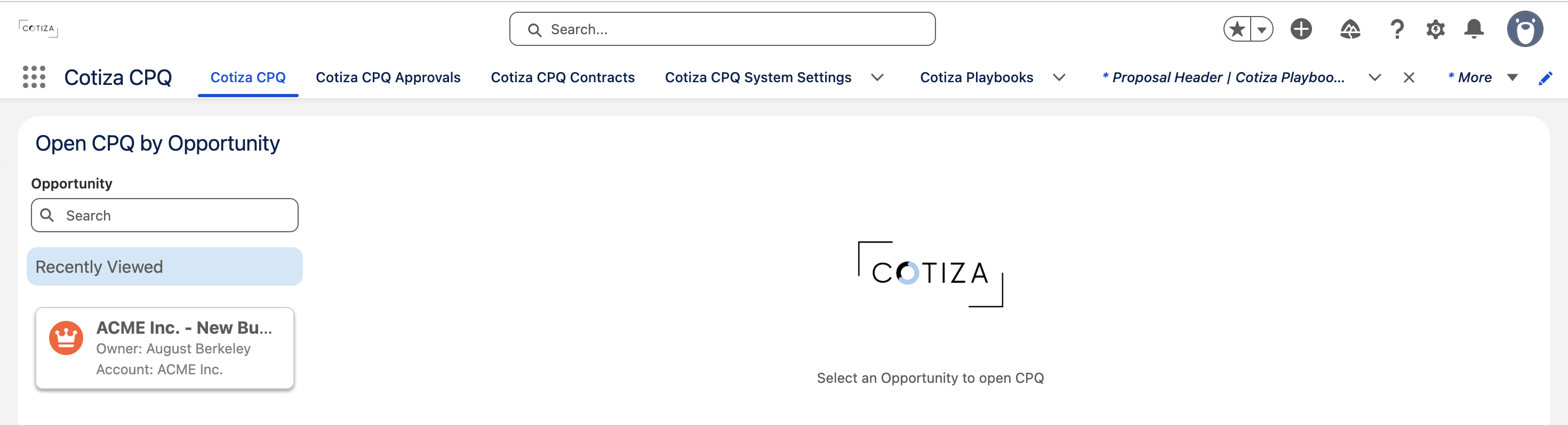
| Cotiza CPQ | cpqByOpportunity | Select Opportunity → quotes, contracts, proposals |
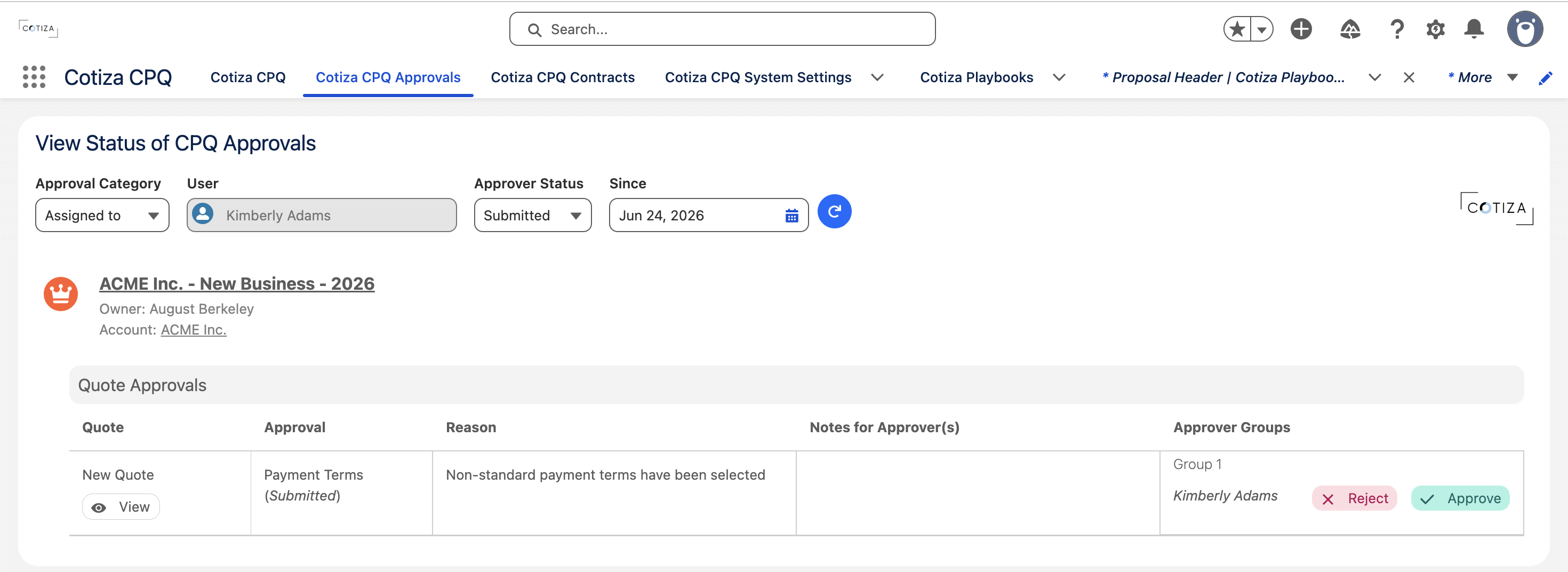
| Cotiza CPQ Approvals | approvalsHub | Approval inbox for submitters and approvers |
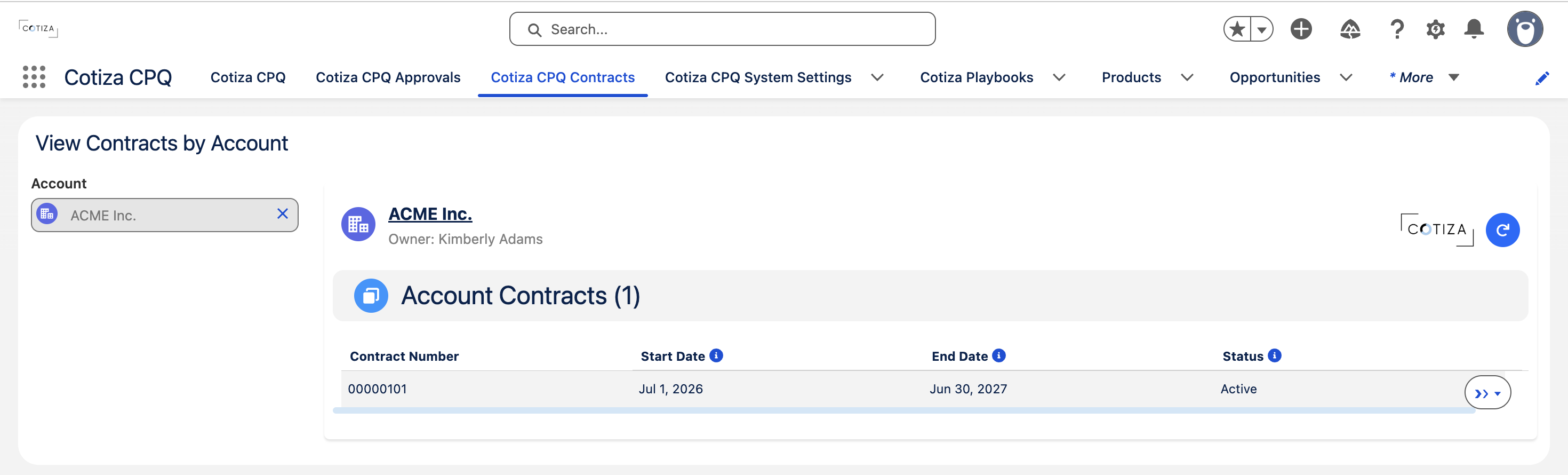
| Cotiza CPQ Contracts | contractsByAccount | Select Account → contract management |
| System Settings | Standard tab | Admin System Settings records |
| Playbooks | Standard tab | Admin Playbook records |
| Pricebooks / Products | Standard tabs | Catalog management |
| Accounts / Opportunities | Standard tabs | Quick navigation |
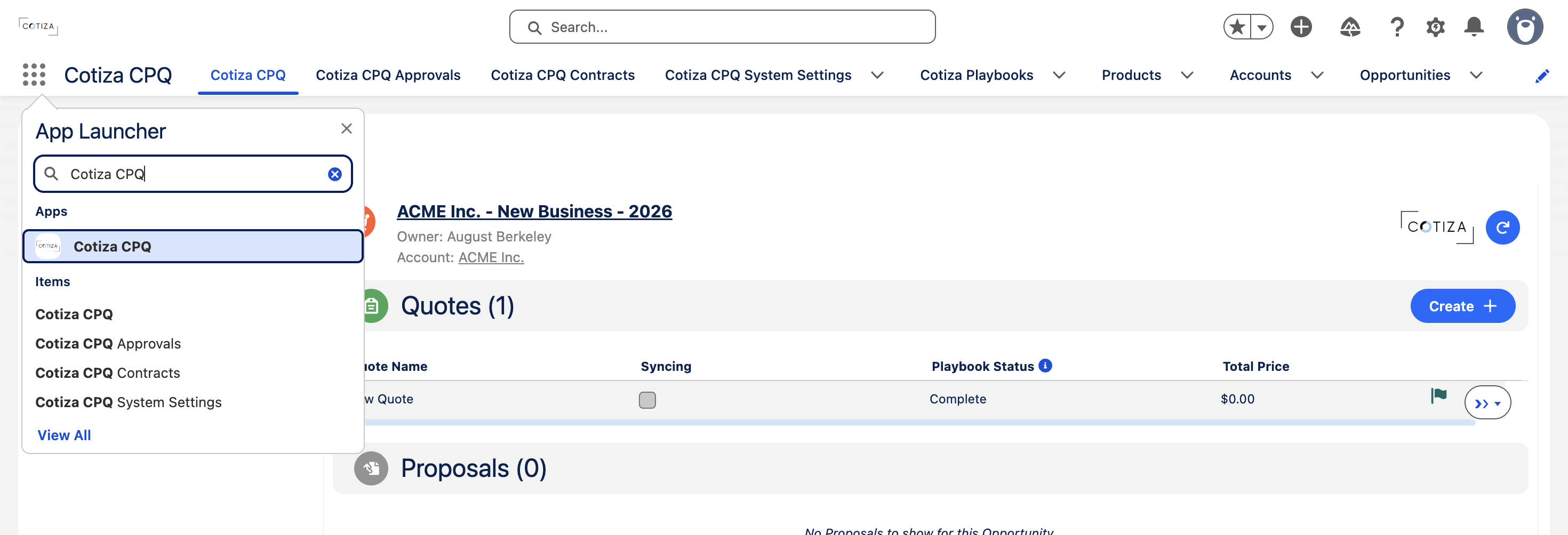
Cotiza CPQ tab (by Opportunity)
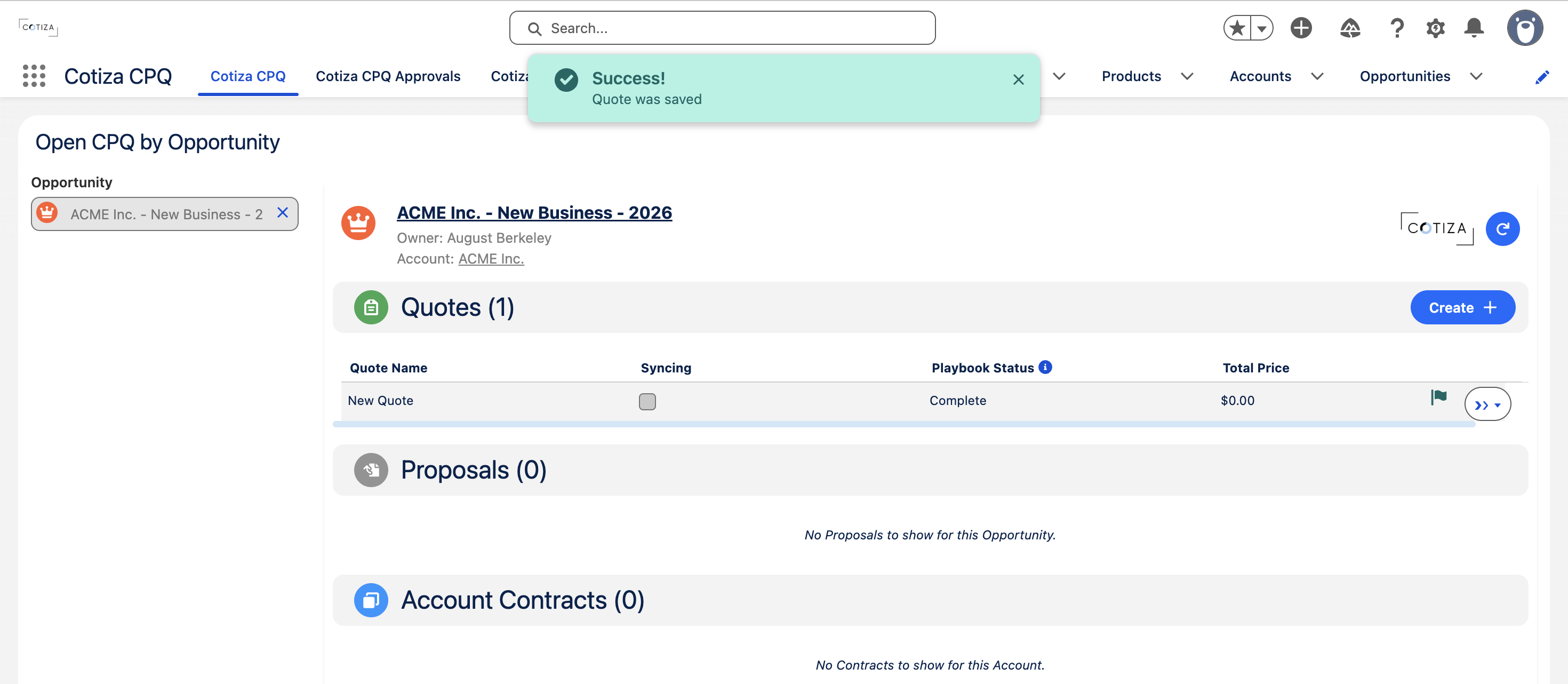
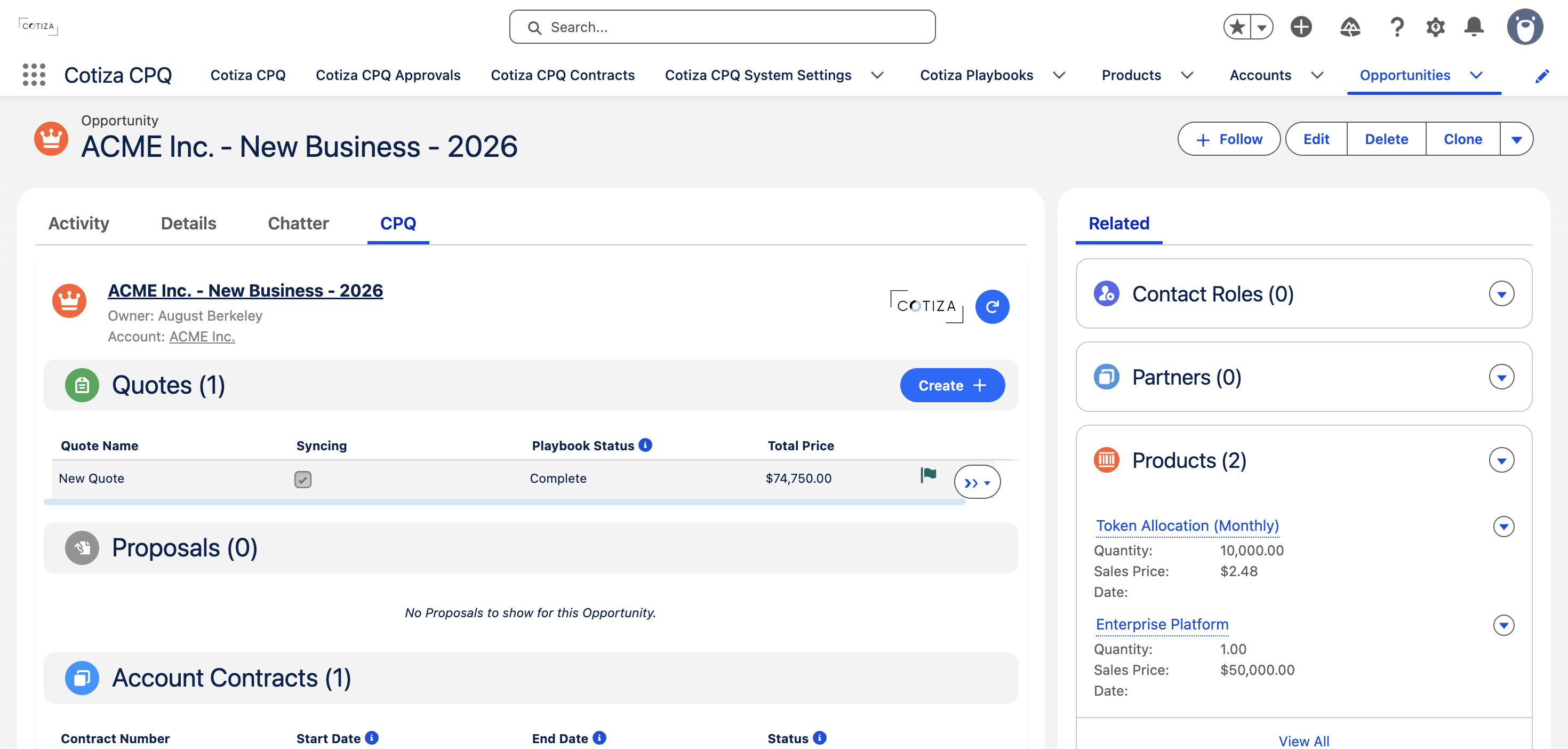
After selecting an Opportunity, the CPQ Container displays:
| Section | Content |
|---|---|
| Quotes table | Create, view, edit, sync, clone, delete, proposal, approvals |
| Contracts table | Linked contracts (when applicable) |
| Proposals table | Generated proposal documents |
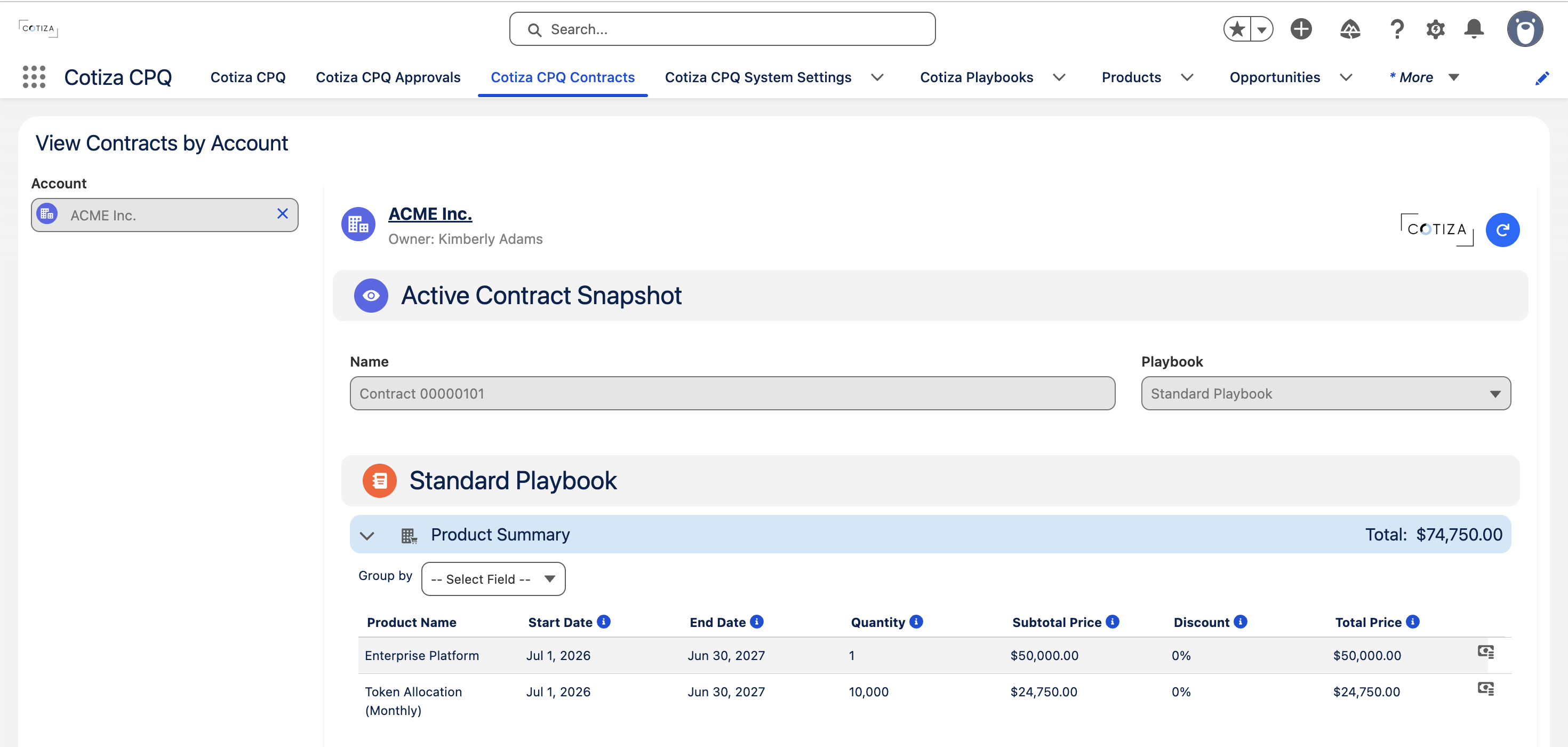
| Most Active Contract | Snapshot widget (when enabled in System Settings) |
Table columns and actions are controlled by System Settings.
Cotiza CPQ Approvals tab
The Approvals Hub (approvalsHub) provides:
- Hierarchical view: Opportunity → Quote → Approval → Step → Approver
- Filters for assigned vs. submitted approvals
- Status filters (submitted, approved, rejected)
- Inline approve/reject with decision reasons
Cotiza CPQ Contracts tab
After selecting an Account:
- List of all Account contracts
- Most active contract product snapshot
- Actions: View, Amend, Replace, Renew, Void (per System Settings)
Record page components
Add these via Lightning App Builder:
Cotiza CPQ Container (cpq_Container)
- Target: Opportunity record page
- Behavior: Same as Cotiza CPQ app tab with Opportunity pre-selected
Cotiza Account Contracts (accountContracts)
- Target: Account record page
- Behavior: Same as Contracts tab with Account pre-selected
Quote configuration modal
When Display Playbook as Modal is enabled on System Settings, the quote configuration wizard (configQuote and child components) opens as a modal overlay instead of a full-page experience.
Configuration UI components (internal)
The quote wizard orchestrates these functional areas:
| Area | Purpose |
|---|---|
| Playbook questions | Guided input by group |
| Product summary | Line item table with actions |
| Add products | Manual product picker |
| Entitlement summary | Contract adjustment comparison |
| Approval summary | Required approvals preview |
| Rules engine | Real-time scenario evaluation |
Adding components to record pages
- Setup → Object Manager → Opportunity (or Account)
- Lightning Record Pages → edit the desired page
- Drag Cotiza CPQ Container or Cotiza Account Contracts onto the layout
- Save and activate for the appropriate app and record type
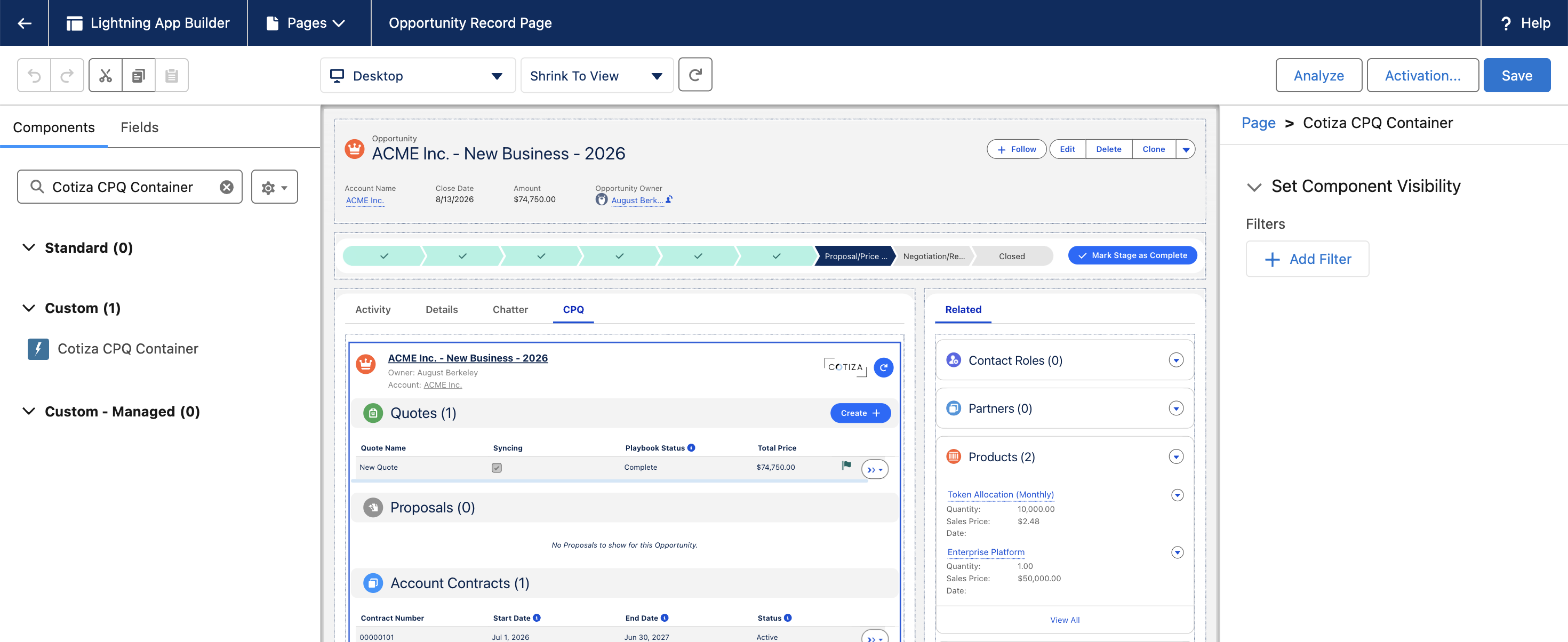
FlexiPages are configured in your org—they are not bundled with the package. Each org must place components on record pages after installation.