Submitting for Approval
When a Quote triggers Playbook Approvals, the submitter must send it through the approval workflow before it can be considered fully approved.
When approval is required
Playbook Approvals are enforced when:
- The linked Playbook Scenario is met (or no Scenario is linked, meaning always enforced)
- The approval is active on the Playbook
- Inverse Scenario logic does not exclude the approval
The Approval Summary section in the Quote configuration UI shows which approvals apply before you save.
Submitting a Quote
- Open the Quote in Cotiza CPQ (create new or edit existing).
- Complete the Playbook configuration and save if needed.
- From the Quotes table, open the Approvals action (or approval modal from the quote row).
- Review required approval levels, approvers, and any required notes.
- Click Submit.
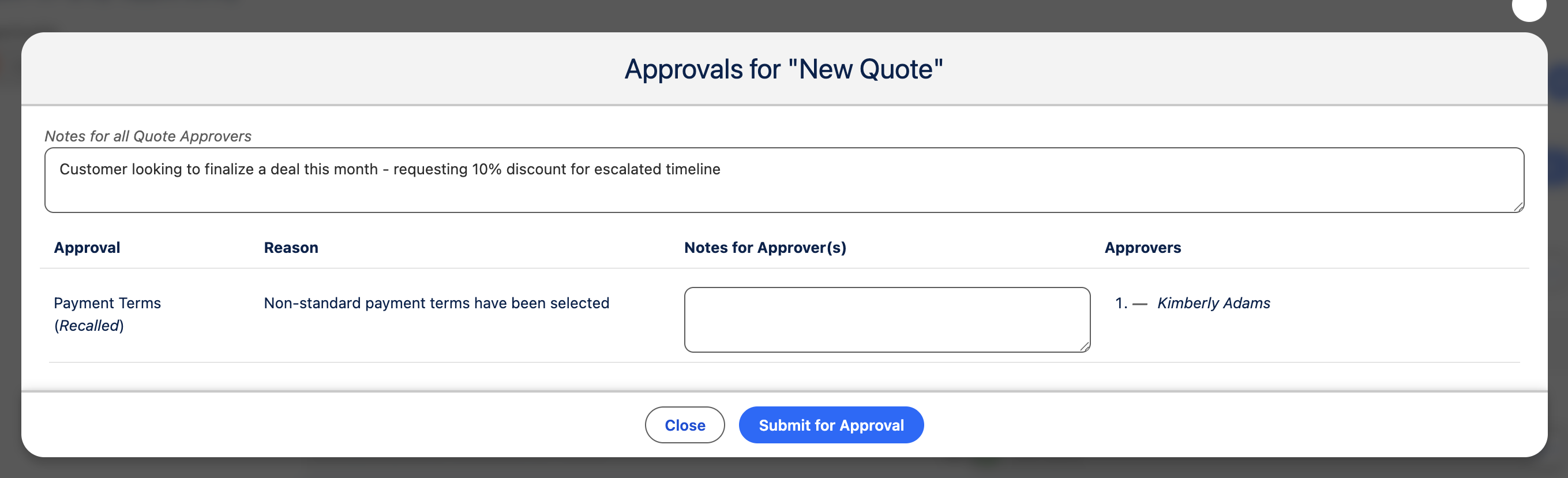
After submission:
- Quote Approval Status moves to Submitted
- Quote Approval, Quote Approval Step, and Quote Approver records are created
- Approvers receive email notifications (when configured on the Playbook Approval)
Approver notes
Some Playbook Approvals require notes at submission (Require Notes). Provide context that helps approvers understand the deal.
System Settings can define which Quote fields submitters may override when submitting approvals via Approval Allowed Override Fields.
Recalling a submission
Submitters can Recall a submitted Quote to pull it back from approvers. After recall, the Quote returns to an editable state and approval status reflects Recalled.
After approval
When all required approvers approve:
- Quote Approval Status becomes Approved
- Proposals can be generated without draft restrictions (unless other conditions apply)
- The Quote is ready for sync and Contract creation
If any approver rejects, status becomes Rejected and the submitter must revise and resubmit.